
Retrieve Email and Parse Email in VB 6.0 - Tutorial
This tutorial introduces how to retrieve email and parse email in VB 6.0 using POP3/IMAP4/EWS/WebDAV protocol. It also demonstrates retrieving email over SSL/TLS connection, verifying email digital signature, decrypting encrypted email (S/MIME), parsing email attachment, parsing non-delivery report (NDR) and managing mail folder.
Sections:
Retrieve email in a simple VB 6.0 project
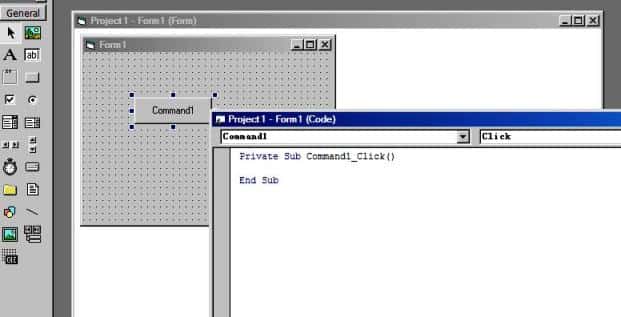
To better demonstrate how to retrieve email and parse email, let’s create a VB 6.0 Standard EXE project at first, then add a CommandButton on the Form, double-click this button. It is like this
Installation
EAGetMail is a POP3 and IMAP4 component which supports all operations of POP3/IMAP4/MIME/Exchange Web Service/WebDAV/SSL/S/MIME protocol. Before you can use the following example codes, you should download the EAGetMail Installer and install it on your machine at first. Full sample projects are included in this installer.
Add Reference
To use EAGetMail POP3 & IMAP4 ActiveX Object in your project,
the first step is Add reference of EAGetMail to your project.
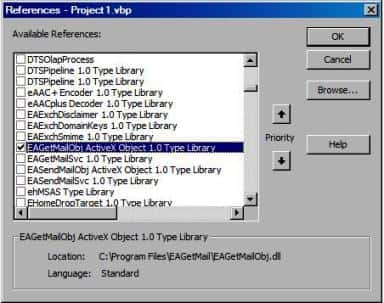
Please go to menu -> Project -> References -> and select EAGetMailObj ActiveX Object, click OK,
the reference will be added to your project, and you can start to use it to retrieve email and parse email in your project.
[VB 6.0 Example - Retrieve email from POP3 server]
Now add the following codes to the project. The following codes demonstrate how to retrieve email from a POP3 mail account. It downloads emails from POP3 server and deletes the email after the email is retrieved.
In order to run it correctly, please change email server, user, password, folder, file name values.
Option Explicit

Const MailServerPop3 = 0
Const MailServerImap4 = 1
Const MailServerEWS = 2
Const MailServerDAV = 3
Const MailServerMsGraph = 4

Private Sub Command1_Click()
    Dim curpath As String
    Dim mailbox As String
    Dim oTools As New EAGetMailObjLib.Tools

    ' Create a folder named "inbox" under current directory
    ' to save the email retrieved.
    curpath = App.Path
    mailbox = curpath & "\inbox"
    oTools.CreateFolder mailbox

    Dim oServer As New EAGetMailObjLib.MailServer
    oServer.Server = "pop3.emailarchitect.net"
    oServer.User = "test@emailarchitect.net"
    oServer.Password = "testpassword"
    oServer.Protocol = MailServerPop3

    ' Enable SSL/TLS connection, most modern email servers require SSL/TLS by default
    oServer.SSLConnection = True
    oServer.Port = 995

    ' If your POP3 doesn't deploy SSL connection
    ' Please use
    ' oServer.SSLConnection = False
    ' oServer.Port = 110

On Error GoTo ErrorHandle:
    Dim oClient As New EAGetMailObjLib.MailClient
    oClient.LicenseCode = "TryIt"

    oClient.Connect oServer
    MsgBox "Connected"

    Dim infos As EAGetMailObjLib.MailInfoCollection
    Set infos = oClient.GetMailInfoList()
    MsgBox infos.Count & " emails"

    Dim i As Long
    For i = 0 To infos.Count - 1
        Dim info As EAGetMailObjLib.MailInfo
        Set info = infos.Item(i)

        MsgBox "Index: " & info.Index & "; Size: " & info.Size & _
        "; UIDL: " & info.UIDL

        ' Receive email from POP3 server
        Dim oMail As EAGetMailObjLib.Mail
        Set oMail = oClient.GetMail(info)

        MsgBox "From: " & oMail.From.Address & _
            vbCrLf & "Subject: " & oMail.Subject

        Dim fileName As String
        ' Generate a random file name by current local datetime,
        ' You can use your method to generate the filename if you do not like it
        fileName = mailbox & "\" & oTools.GenFileName(i) & ".eml"

        ' Save email to local disk
        oMail.SaveAs fileName, True

        ' Mark email as deleted from POP3 server.
        oClient.Delete info
    Next

    ' Quit and expunge emails marked as deleted from POP3 server.
    oClient.Quit
    Exit Sub

ErrorHandle:
    MsgBox Err.Description
End Sub
If you set everything right, you can get emails in the mail folder. If the codes threw exception, then please have a look at the following section.
Where can I get my POP3 server address, user and password?
Because each email account provider has different server address, so you should query your POP3 server address from your email account provider. User name is your email address or your email address without domain part. It depends on your email provider setting.
When you execute above example code, if you get error about “Networking connection” or “No such host”, it is likely that your POP3 server address is not correct. If you get an error like “Invalid user or password”, it is likely that you did not set the correct user or password.
Finally, if you have already set your account in your email client such as Outlook
or Window Mail, you can query your POP3 server address, user in your email client.
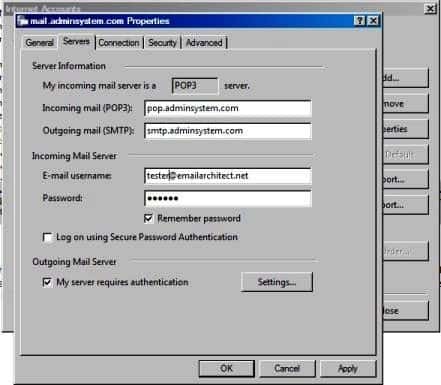
For example, you can choose menu -> Tools -> Accounts -> Your email
account -> Properties -> Servers in Outlook express or Windows Mail
to get your POP3 server, user. Using EAGetMail to receive email does not require
you have email client installed on your machine or MAPI, however you can query your
exist email accounts in your email client.
Troubleshooting
When you retrieve email in above simple project, if it returned an error, please have a look at the following tips:
“No Such Host” Error
This error means DNS server cannot resolve POP3 server, you should check if you input correct server address. If your server address is correct, you should check if your DNS server setting is correct.
Common “Socket/Networking Connection” Error
This error means there is a problem with networking connection to POP3 server. You can use Windows built-in Telnet command to detect the networking connection.
Using Telnet to detect networking connection to POP3 server
Note
Notice: in Windows 2008/Windows 8 or later version, Telnet Client is not installed by default, you should enable this command in Control Panel -> Programs and Features -> Turn Windows feature on or off -> have Telnet Client checked.
Under DOS command prompt, input telnet [serveraddress] [port]
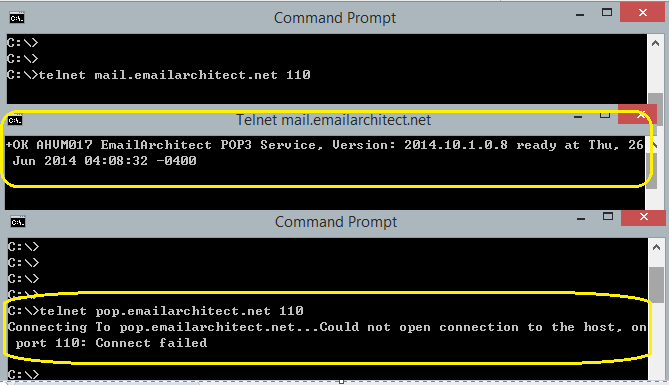
telnet mail.emailarchitect.net 110
If the networking connection to your POP3 server is good, it should return a message like +OK ....
If it returns Could not open connection to ..., that means the networking connection to POP3 server is bad,
or outbound 110 port is blocked by anti-virus software, firewall or ISP.
Please have a look at the following screenshot:
POP3 110, 995 port, IMAP4 143, 993 port and SSL
- 110 port is the default POP3 server port to receive email. 995 port is the common POP3 SSL port used to receive email over implicit SSL connection.
- 143 port is the default IMAP4 server port, 993 port is the common port for IMAP4 SSL.
If you use telnet to test 995/993 port, it doesn’t return the +OK..., because it requires SSL hand shake.
If the connection is ok, telnet returns a flash cursor.
Now SSL is commonly used, many email servers require SSL connection such as Gmail, Outlook, Office 365 and Yahoo.
In this case you should set MailServer.SSLConnection to true and change MailServer.Port to 995 (POP3) or 993 (IMAP4).
“-ERR user authentication” Error
This error means user authentication is failed, you should check whether you input correct user/password. Password is always case-sensitive.
Other error returned by POP3 server
If POP3 server returns an error, it usually returns description about this error. You can use the following codes to generate a log file to learn all POP3 session between client and server.
[VB 6.0 - Using log file to detect POP3 server response - Example]
oClient.LogFileName = "d:\pop3.txt"
TLS 1.2
TLS is the successor of SSL, more and more Email servers require TLS 1.2 encryption now.
If your operating system is Windows XP/Vista/Windows 7/Windows 2003/2008/2008 R2/2012/2012 R2,
and you got connection error with SSL/TLS connection,
you need to enable TLS 1.2 protocol in your operating system like this:
Enable TLS 1.2 on Windows XP/Vista/7/10/Windows 2008/2008 R2/2012
32bit/x64 ActiveX DLL
Seperate builds of run-time dll for 32 and x64 platform
| File | Platform |
| Installation Path\Lib\native\x86\EAGetMailObj.dll | 32 bit |
| Installation Path\Lib\native\x64\EAGetMailObj.dll | 64 bit |
Distribution
Standard EXE
For VB6, C++, Delphi or other standard exe application, you can distribute EAGetMailObj.dll with your application to target machine without COM-registration and installer. To learn more detail, please have a look at Registration-free COM with Manifest File.
Script
For ASP, VBScript, VBA, MS SQL Stored Procedure, you need to install EAGetMail on target machine by EAGetMail installer, both 32bit/x64 DLL are installed and registered.
Next Section
In this section, I introduced retrieving email in VB 6.0 with POP3 protocol. At next section I will introduce how to retrieve email from IMAP4 server.
Appendix
- EAGetMail POP3/IMAP4 Component SDK
- Using UIDLManager to mark email as read/downloaded
- Download only unread/new emails from IMAP or MS Exchange Server
- Search emails and filter emails on IMAP4 or MS Exchange Server
- Retrieve emails from specified folder in IMAP or MS Exchange Server
- Parse Outlook .MSG file
- Export emails from Outlook INBOX or PST file
- Import emails to Outlook INBOX or PST file
- Registration-free COM with Manifest File (Distribution).
Comments
If you have any comments or questions about above example codes, please click here to add your comments.