
Send Email in Managed C++/CLI - Tutorial
This tutorial introduces how to send email in Managed C++/CLI using SMTP. It also demonstrates SSL, S/MIME, Embedded Images, Email Queue and Multiple Threads usage.
Sections:
- Send email in a simple Managed C++/CLI project
- Common SMTP Transport Error
- TLS 1.2
- Where can I get my SMTP email server address, user and password?
- Email Address Syntax and Multiple Recipients
- From, ReplyTo, Sender and Return-Path
- Mail Priority
- Troubleshooting
- Process Bounced Email (Non-Delivery Report)
- Email Tracking
- Bulk Email Sender Guidelines
Send email in a simple Managed C++/CLI project
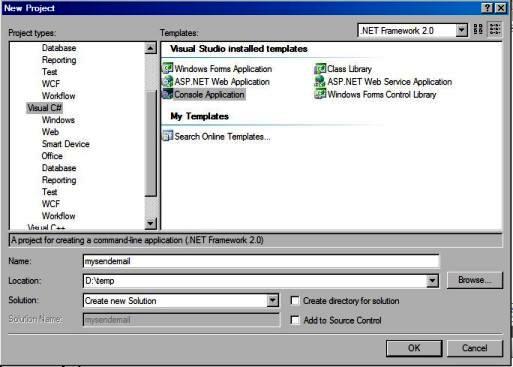
To better demonstrate how to send email using EASendMail, let’s create a Managed C++/CLI console project at first, and then add the reference of EASendMail in your project.
Installation
EASendMail is a SMTP component which supports all operations of SMTP/ESMTP protocols (RFC 821, RFC 822, RFC 2554). It also supports Exchange Web Service (EWS) and WebDAV protocols. Before you can use the following example codes, you should download the EASendMail Installer and install it on your machine at first.
Install from NuGet
You can also install the run-time assembly by NuGet. Run the following command in the NuGet Package Manager Console:
Install-Package EASendMail
Note
If you install it by NuGet, no sample projects are installed, only .NET assembly is installed.
Add Reference
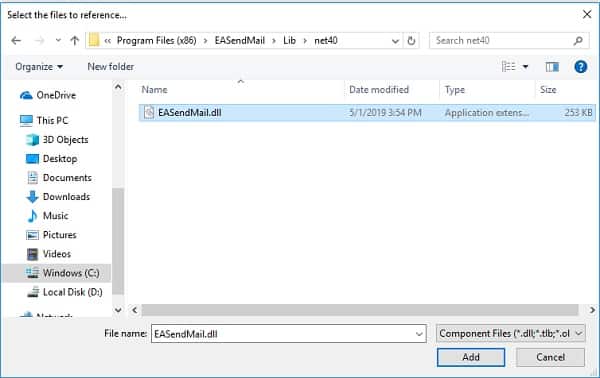
To use EASendMail SMTP Component in your project, the first step is “Add reference
of EASendMail to your project”. Please create or open your project with Visual Studio
and go to menu -> Project -> Add Reference -> .NET -> Browse..., and
select the Installation Path\Lib\net[version]\EASendMail.dll from local disk, click Open -> OK, the reference
will be added to the project, and you can start to use it to send email in the project.
.NET Assembly
Because EASendMail has separate builds for .Net Framework, please refer to the following table and choose the correct dll.
Separate builds of run-time assembly for .NET Framework 1.1, 2.0, 3.5, 4.0, 4.5, 4.6.1, .NET Core 3.1, .NET 5.0, .NET Standard 2.0 and .NET Compact Framework 2.0, 3.5.
| File | .NET Framework Version |
| Lib\net20\EASendMail.dll |
Built with .NET Framework 2.0
It requires .NET Framework 2.0, 3.5 or later version. |
| Lib\net40\EASendMail.dll |
Built with .NET Framework 4.0
It requires .NET Framework 4.0 or later version. |
| Lib\net45\EASendMail.dll |
Built with .NET Framework 4.5
It requires .NET Framework 4.5 or later version. |
| Lib\net461\EASendMail.dll |
Built with .NET Framework 4.6.1
It requires .NET Framework 4.6.1 or later version. |
| Lib\netcoreapp3.1\EASendMail.dll |
Built with .NET Core 3.1
It requires .NET Core 3.1 or later version. |
| Lib\net5.0\EASendMail.dll |
Built with .NET 5.0
It requires .NET 5.0 or later version. |
| Lib\netstandard2.0\EASendMail.dll |
Built with .NET Standard 2.0
It requires .NET Standard 2.0 or later version. |
| Lib\net20-cf\EASendMail.dll |
Built with .NET Compact Framework 2.0
It requires .NET Compact Framework 2.0, 3.5 or later version. |
| Lib\net35-cf\EASendMail.dll |
Built with .NET Compact Framework 3.5
It requires .NET Compact Framework 3.5 or later version. |
[Managed C++/CLI Example - Send email]
Now add the following codes to the project and change From, To, Server, User and
Password to corresponding value.
#include "stdafx.h"
using namespace System;
using namespace EASendMail;

int main(array<System::String ^> ^args)
{
    try
    {
        SmtpMail ^oMail = gcnew SmtpMail("TryIt");

        // Set sender email address, please change it to yours
        oMail->From = "test@emailarchitect.net";
        // Set recipient email address, please change it to yours
        oMail->To = gcnew AddressCollection("support@emailarchitect.net");

        // Set email subject
        oMail->Subject = "test email from Managed C++ project";
        // Set email body
        oMail->TextBody = "this is a test email sent from Managed C++ project, do not reply";

        // Your SMTP server address
        SmtpServer ^oServer = gcnew SmtpServer("smtp.emailarchitect.net");

        // User and password for ESMTP authentication
        oServer->User = "test@emailarchitect.net";
        oServer->Password = "testpassword";

        // Most mordern SMTP servers require SSL/TLS connection now.
        // ConnectTryTLS means if server supports SSL/TLS, SSL/TLS will be used automatically.
        oServer->ConnectType = SmtpConnectType::ConnectTryTLS;

        // If your SMTP server uses 587 port
        // oServer->Port = 587;

        // If your SMTP server requires SSL/TLS connection on 25/587/465 port
        // oServer->Port = 25; // 25 or 587 or 465
        // oServer->ConnectType = SmtpConnectType::ConnectSSLAuto;

        Console::WriteLine("start to send email from Managed C++...");

        SmtpClient ^oSmtp = gcnew SmtpClient();
        oSmtp->SendMail(oServer, oMail);

        Console::WriteLine("email was sent successfully!");
    }
    catch (Exception ^ep)
    {
        Console::WriteLine("failed to send email with the following error:");
        Console::WriteLine(ep->Message);
    }

    return 0;
}
If you set everything right, you can get “email was sent successfully”. If you get “failed to send email with the following error:”, then please have a look at the following section.
Common SMTP Transport Error
When you execute above example code, if it threw an exception about “Networking connection” or “No such host”, it is likely that your SMTP server address is not correct. If it threw an exception about “5xx Relay denied”, it is likely that you did not set user authentication. Another common error is “5xx Must issue a STARTTLS command first” or “No supported authentication marshal found!”, that is because your SMTP server requires user authentication under SSL connection. You can set the SSL connection to solve this problem. You can learn more detail in Troubleshooting section.
TLS 1.2
TLS is the successor of SSL, more and more SMTP servers require TLS 1.2 encryption now.
If your operating system is Windows XP/Vista/Windows 7/Windows 2003/2008/2008 R2/2012/2012 R2,
and you got connection error with SSL/TLS connection,
you need to enable TLS 1.2 protocol in your operating system like this:
Enable TLS 1.2 on Windows XP/Vista/7/10/Windows 2008/2008 R2/2012
Where can I get my SMTP email server address, user and password?
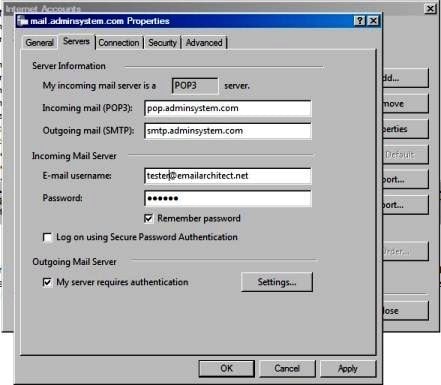
Because each email account provider has different server address, so you should query your SMTP server address from your email account provider. To prevent spreading email from the server, most SMTP servers also require user authentication. User name is your email address or your email address without domain part, it depends on your email provider setting.
Finally, if you have already set your account in your email client such as Outlook or Window Mail, you can query your SMTP server address, user in your email client. For example, you can choose menu -> “Tools” - > - “Accounts” - > “Your email account” - > “Properties” - > “Servers” in Outlook express or Windows Mail to get your SMTP server, user. Using EASendMail to send email does not require you have email client installed on your machine or MAPI, however you can query your exist email accounts in your email client.
Email Address Syntax and Multiple Recipients
The following example codes demonstrates how to specify display name and email address by different syntax.
// For single email address (From, ReplyTo, ReturnPath), the syntax can be:
// ["][display name]["]<email address>

// For example:
"Tester, T" <test@adminsystem.com>
Tester <test@adminsystem.com>
<test@adminsystem.com>
test@adminsystem.com

// For mulitple email address (To, CC, Bcc), the syntax can be:
// [single email],[single email]...
// (,;\r\n) can be used to separate multiple email addresses.

// For example:
"Tester, T" <test1@adminsystem.com>, Tester2 <test2@adminsystem.com>,
    <test3@adminsystem.com>, test4@adminsystem.com
[Managed C++/CLI Example - Email syntax]
To better understand the email address syntax, please refer to the following codes.
// From is a MailAddress object, it supports implicit converting from string.
// The syntax is like this: "test@adminsystem.com" or "Tester<test@adminsystem.com>"
// The example code without implicit converting.
oMail->From = gcnew MailAddress( "Tester", "test@adminsystem.com" );
oMail->From = gcnew MailAddress( "Tester<test@adminsystem.com>");
oMail=>From = gcnew MailAddress( "test@adminsystem.com" );

// To, Cc and Bcc is a AddressCollection object, it supports implicit converting
// from string. Multiple addresses are separated with (,;)
// The syntax is like this: "test@adminsystem.com, test1@adminsystem.com"
// The example code without implicit converting
oMail->To = gcnew AddressCollection( "test1@adminsystem.com, test2@adminsystem.com" );
oMail->To = gcnew AddressCollection( "Test1<test@adminsystem.com>, Test2<test2@adminsystem.com>");

// You can add more recipient by Add method
oMail->To->Add( gcnew MailAddress( "tester", "test@adminsystem.com"));

// You can also add  carbon copy (CC) or blind carbon copy (BCC) in the email.
oMail->Cc->Add( gcnew MailAddress( "CC recipient", "cc@adminsystem.com"));
oMail->Bcc->Add( gcnew MailAddress( "Bcc recipient", "bcc@adminsystem.com"));
From, ReplyTo, Sender and Return-Path
From, Reply-To, Sender and Return-Path are common email headers in email message. You should always set From property at first, it is a MUST to identify the email sender. The following table lists the header and corresponding properties:
| Header | Property |
| From | SmtpMail.From |
| Reply-To | SmtpMail.ReplyTo |
| Sender | SmtpMail.Sender |
| Return-Path | SmtpMail.ReturnPath |
From
This property indicates the original email sender. This is what you see as the “FROM” in most mail clients.
Reply-To
This property indicates the reply address. Basically, when the user clicks “reply” in mail client, the Reply-To value should be used as the recpient address of the replied email. If you don’t set this property, the Reply address is same as From address.
Sender
This property indicates the who submit/send the email. When the user received the email, the email client displays: From: “sender address” on behalf of “from address”. If you don’t set this property, the Sender address is same as From address. Sender property is common used by mail listing provider. This property also takes effect to DKIM/DomainKeys signature, if Sender is different with From address, then you should sign DKIM/DomainKeys based on Sender domain instead of From address domain.
Return-Path
This property indicates the delivery notification report address. If you don’t set this property, the Return-Path address is same as From address. This property also takes effect to SPF record, if Return-Path is different with From address, then remote SMTP server checkes SPF record of Return-Path instead of From address.
[C++/CLI - From, ReplyTo, Sender and Return-Path in Email - Example]
The following example codes demonstrate how to specify From, Reply-To, Sender and Return-Path in Email. With the following example codes:
- If the email couldn’t be delivered to recipient, a non-delivery report will be sent
to
report@emailarchitect.net. - If the user received the email, the email client will display:
sender@emailarchitect.neton behalf offrom@adminsystem.com. - If the user click “reply”, the replied email will be sent to
reply@adminsystem.com.
SmtpMail ^oMail = gcnew SmtpMail("TryIt");
oMail->From = "from@adminsystem.com";
oMail->ReplyTo = "reply@adminsystem.com";
oMail->Sender = "sender@emailarchitect.net";
oMail->ReturnPath = "report@emailarchitect.net";
Mail Priority
If you want to set Higher or Lower priority to your email, you can use Priority prority
[C# - Mail Priority - Example]
// Set high priority
oMail->Priority = MailPriority::High;
Troubleshooting
When you send email in above simple C# project, if it threw an exception, please have a look at the following tips:
“No Such Host” exception
This error means DNS server cannot resolve SMTP server, you should check if you input correct server address. If your server address is correct, you should check if your DNS server setting is correct.
Common “Networking Connection” Exception
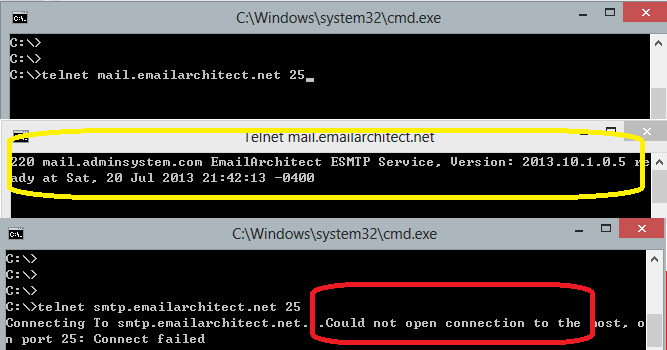
This error means there is a problem with networking connection to SMTP server. You can use Windows built-in Telnet command to detect the networking connection.
Using Telnet to detect networking connection to SMTP server
Note
Notice: in Windows 2008/Windows 8 or later version, Telnet Client is not installed
by default, you should enable this command in Control Panel -> Programs and
Features -> Turn Windows feature on or off -> have Telnet Client checked.
Under DOS command prompt, input “telnet [serveraddress] [port]”:
telnet mail.emailarchitect.net 25
press enter.
If the networking connection to your SMTP server is good, it should return a message
like 220 .... If it returns Could not open connection to ..., that means the
networking connection to SMTP server is bad, or outbound 25 port is blocked by anti-virus
software, firewall or ISP. Please have a look at the following screenshot:
SMTP 25, 587, 465 port
25 port is the default SMTP server port to receive email. However, some ISP block outbound 25 port to prevent user to send email directly to other SMTP server. Therefore, many email providers also provide an alternative port 587 to receive email from such users. 465 port is the common port used to receive email over implicit SSL connection. If you use telnet to test 465 port, it doesn’t return the “220…”, because it requires SSL hand shake. But if the connection is ok, telnet returns a flash cursor.
“5xx … IP address block or on black list or bad reputation” Exception
This error means SMTP server blocks your IP address or email content. You can try to set user/password in your codes to do user authentication and try it again. If email client set user authentication, most SMTP servers do not check client source IP address in black list.
“5xx user authenticaton” Exception
TThis error means user authentication is failed, you should check whether you input correct user/password. Password is always case-sensitive.
“5xx relay denied” Exception
For anti-spam policy, most SMTP servers do not accept the email to outbound domain without user authentication. You should set user/password in the codes and try it again.
“5xx Must issue a STARTTLS command first”
This error means SMTP server requires SSL/TLS connection. You should enable SSL/TLS connection like this:
// If your smtp server requires TLS connection, please add this line
oServer->ConnectType = SmtpConnectType::ConnectSSLAuto;
“No supported authentication marshal found!”
This error means SMTP server doesn’t support user authentication or it requires user authentication over SSL/TLS connection. You can try to remove user/password in your codes and try it again.
Other error returned by SMTP server
If SMTP server returns an error, it usually returns description about this error. Some descriptions also include a HTTP link, you can go to this linked web page to learn more detail. You can also use the following codes to generate a log file to learn all SMTP session between client and server.
[C++/CLI - Using log file to detect SMTP server response - Example]
oSmtp->LogFileName = "d:\\smtp.txt";
Process Bounced Email (Non-Delivery Report)
If you sent email successfully without error, that means the email has been submitted to the SMTP server. The SMTP server will deliver the email in background, if the email couldn’t be delivered, a Failure Report (NDS) will be sent back to your sender email address.
To retrieve and parse Failure Report (NDS), you should monitor your sender mailbox. I recommend that you use EAGetMail to monitor your sender mailbox using POP3/IMAP4/Exchange WebDAV/Exchange Web Service protocol. After you installed EAGetMail on your machine, there are several full samples named “parse_report.*” for VB.NET, C# in the installation path.
Email Tracking
Email tracking is used to verify that emails are actually read by recipients. There are two common solutions: Read Receipt and Linked Image Tracking
To learn more detail about Process Bounced Email (Non-Delivery Report) and Email Tracking, please have a look at this topic: Process Bounced Email (Non-Delivery Report) and Email Tracking
Bulk Email Sender Guidelines
If you are a mail listing provider and send bulk emails every day, of course you don’t want your emails are blocked or moved to Junk folder of the recipient mailbox.
To increase the inbox delivery rate of your messages, make sure that all recipients on your distribution lists actually want to receive the mail. Have a look the topic for some tips on how to make sure your messages are welcomed by most email providers:
Next Section
In this section, I introduced how to send email in a simple C++/CLI project using SMTP protocol. At next section I will introduce how to send email over SSL/TLS connection.
Appendix
- EASendMail SMTP Component SDK
- Process Bounced Email (Non-Delivery Report) and Email Tracking
- Bulk Email Sender Guidelines
- Work with Email Queue
Comments
If you have any comments or questions about above example codes, please click here to add your comments.