
C# - Retrieve email from Hotmail/Outlook/Office 365
The following c# example codes demonstrate how to retrieve email from Hotmail/Outlook/Office 365 IMAP4 server.
Hotmail, Outlook.com, Live User
Hotmail/Outlook POP3 server address is outlook.office365.com. It requires SSL connection
on 995 port; Hotmail/Outlook IMAP4 server address is outlook.office365.com. It requires SSL connection
on 993 port;
You should use your Hotmail/Outlook email address as the user name
for user authentication. For example: your email is liveid@hotmail.com, and then
the user name should be liveid@hotmail.com.
| Server | Port | SSL | Protocol |
| outlook.office365.com | 995 | SSL required | Pop3 |
| outlook.office365.com | 993 | SSL required | Imap4 |
App Password with Microsoft Account
If your account enabled two-factor authentication, you cannot login your account by normal user authentication,
you should create an App Passwords and
use this App Password instead of the user password.
Another solution is using OAUH, please see Hotmail IMAP OAUTH section.
Office 365
First of all, you should go to Office 365 Outlook -> Options -> See All Options -> Account -> My Account -> Settings for POP, IMAP, and SMTP access.
You will get your Office 365 POP3/IMAP4 server address and port. The default POP3 server is outlook.office365.com on SSL 995 port;
IMAP4 server is outlook.office365.com on SSL 993 port.
Important
Office 365 has started to disable user login in POP/IMAP protocol, you should use Office365 POP/IMAP/EWS OAUTH instead of traditional user/password login.
| Server | Port | SSL | Protocol |
| outlook.office365.com | 995 | SSL required | Pop3 |
| outlook.office365.com | 993 | SSL required | Imap4 |
App Password and Office 365 OAUTH
If your account enabled two-factor authentication, you cannot login your account by normal user authentication,
you should create an App Passwords and
use this App Password instead of the user password.
Office 365 has started to disable user login in POP/IMAP protocol, if basic authentication has been disabled in your tenant,
you have to use Office365 POP/IMAP/EWS OAUTH.
Installation
Before you can use the following sample codes, you should download the EAGetMail Installer and install it on your machine at first. Full sample projects are included in this installer.
Install from NuGet
You can also install the run-time assembly by NuGet. Run the following command in the NuGet Package Manager Console:
Install-Package EAGetMail
Note
If you install it by NuGet, no sample projects are installed, only .NET assembly is installed.
Add reference
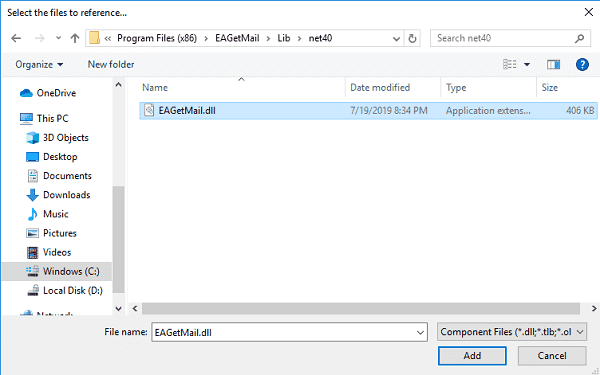
To use EAGetMail POP3 & IMAP Component in your project, the first step is “Add reference
of EAGetMail to your project”. Please create or open your project with Visual Studio,
then go to menu -> Project -> Add Reference -> .NET -> Browse..., and
select Installation path\Lib\[netversion]\EAGetMail.dll, click Open-> OK, the reference
will be added to the project, you can start to use it to
retrieve email and parse email in your project.
.NET assembly
Because EAGetMail has separate builds for .Net Framework, please refer to the following table and choose the correct dll.
Separate builds of run-time assembly for .Net Framework 2.0, 4.0, 4.5, 4.6.1, 4.7.2, 4.8.1, .NET 6.0, NET 7.0, .NET 8.0, .NET Standard 2.0 and .Net Compact Framework 2.0, 3.5.
| File | .NET Framework Version |
| Lib\net20\EAGetMail.dll |
Built with .NET Framework 2.0
It requires .NET Framework 2.0, 3.5 or later version. |
| Lib\net40\EAGetMail.dll |
Built with .NET Framework 4.0
It requires .NET Framework 4.0 or later version. |
| Lib\net45\EAGetMail.dll |
Built with .NET Framework 4.5
It requires .NET Framework 4.5 or later version. |
| Lib\net461\EAGetMail.dll |
Built with .NET Framework 4.6.1
It requires .NET Framework 4.6.1 or later version. |
| Lib\net472\EAGetMail.dll |
Built with .NET Framework 4.7.2
It requires .NET Framework 4.7.2 or later version. |
| Lib\net481\EAGetMail.dll |
Built with .NET Framework 4.8.1
It requires .NET Framework 4.8.1 or later version. |
| Lib\net6.0\EAGetMail.dll |
Built with .NET 6.0
It requires .NET 6.0 or later version. |
| Lib\net7.0\EAGetMail.dll |
Built with .NET 7.0
It requires .NET 7.0 or later version. |
| Lib\net8.0\EAGetMail.dll |
Built with .NET 8.0
It requires .NET 8.0 or later version. |
| Lib\netstandard2.0\EAGetMail.dll |
Built with .NET Standard 2.0
It requires .NET Standard 2.0 or later version. |
| Lib\net20-cf\EAGetMail.dll |
Built with .NET Compact Framework 2.0
It requires .NET Compact Framework 2.0, 3.5 or later version. |
| Lib\net35-cf\EAGetMail.dll |
Built with .NET Compact Framework 3.5
It requires .NET Compact Framework 3.5 or later version. |
C# - Retrieve email from Hotmail/Outlook/Office 365 - example
The following example codes demonstrate how to download emails from Hotmail/Outlook/Office365 account using IMAP4 protocol.
In order to run it correctly, please change email server, user, password, folder, file name value to yours.
Note
To get full sample projects, please download and install EAGetMail on your machine.
using System;
using System.Globalization;
using System.IO;
using EAGetMail; //add EAGetMail namespace

namespace receiveemail
{
    class Program
    {
        // Generate an unqiue email file name based on date time
        static string _generateFileName(int sequence)
        {
            DateTime currentDateTime = DateTime.Now;
            return string.Format("{0}-{1:000}-{2:000}.eml",
                currentDateTime.ToString("yyyyMMddHHmmss", new CultureInfo("en-US")),
                currentDateTime.Millisecond,
                sequence);
        }

        static void Main(string[] args)
        {
            try
            {
                // Create a folder named "inbox" under current directory
                // to save the email retrieved.
                string localInbox = string.Format("{0}\\inbox", Directory.GetCurrentDirectory());
                // If the folder is not existed, create it.
                if (!Directory.Exists(localInbox))
                {
                    Directory.CreateDirectory(localInbox);
                }

                // If you got authentication error, try to create an app password instead of your user password.
                // https://support.microsoft.com/en-us/account-billing/using-app-passwords-with-apps-that-don-t-support-two-step-verification-5896ed9b-4263-e681-128a-a6f2979a7944
                // Hotmail/MSN IMAP4 server is "outlook.office365.com"
                MailServer oServer = new MailServer("outlook.office365.com",
                    "liveid@hotmail.com", "your password or app password", ServerProtocol.Imap4);

                // For office 365 user, please change server to:
                // MailServer oServer = new MailServer("outlook.office365.com",
                //    "yourid@domain", "your password or app password", ServerProtocol.Imap4);

                // Enable SSL connection.
                oServer.SSLConnection = true;

                // Set 993 SSL port
                oServer.Port = 993;

                MailClient oClient = new MailClient("TryIt");
                oClient.Connect(oServer);

                MailInfo[] infos = oClient.GetMailInfos();
                Console.WriteLine("Total {0} email(s)\r\n", infos.Length);
                for (int i = 0; i < infos.Length; i++)
                {
                    MailInfo info = infos[i];
                    Console.WriteLine("Index: {0}; Size: {1}; UIDL: {2}",
                        info.Index, info.Size, info.UIDL);

                    // Receive email from IMAP4 server
                    Mail oMail = oClient.GetMail(info);

                    Console.WriteLine("From: {0}", oMail.From.ToString());
                    Console.WriteLine("Subject: {0}\r\n", oMail.Subject);

                    // Generate an unqiue email file name based on date time.
                    string fileName = _generateFileName(i + 1);
                    string fullPath = string.Format("{0}\\{1}", localInbox, fileName);

                    // Save email to local disk
                    oMail.SaveAs(fullPath, true);

                    // Mark email as deleted from IMAP4 server.
                    oClient.Delete(info);
                }

                // Quit and expunge emails marked as deleted from IMAP4 server.
                oClient.Quit();
                Console.WriteLine("Completed!");
            }
            catch (Exception ep)
            {
                Console.WriteLine(ep.Message);
            }
        }
    }
}
C# - Retrieve unread/new email from Hotmail/Outlook/Office 365 - example
Because IMAP/EWS/WebDAV support read mail flag, with this feature, we can also retrieve unread/new email only from Hotmail/Outlook/Office 365 like this
using System;
using System.Globalization;
using System.IO;
using EAGetMail; //add EAGetMail namespace

namespace receiveemail
{
    class Program
    {
        // Generate an unqiue email file name based on date time
        static string _generateFileName(int sequence)
        {
            DateTime currentDateTime = DateTime.Now;
            return string.Format("{0}-{1:000}-{2:000}.eml",
                currentDateTime.ToString("yyyyMMddHHmmss", new CultureInfo("en-US")),
                currentDateTime.Millisecond,
                sequence);
        }

        static void Main(string[] args)
        {
            try
            {
                // Create a folder named "inbox" under current directory
                // to save the email retrieved.
                string localInbox = string.Format("{0}\\inbox", Directory.GetCurrentDirectory());
                // If the folder is not existed, create it.
                if (!Directory.Exists(localInbox))
                {
                    Directory.CreateDirectory(localInbox);
                }


                // Hotmail/MSN IMAP4 server is "outlook.office365.com"
                // If you got authentication error, try to create an app password instead of your user password.
                // https://support.microsoft.com/en-us/account-billing/using-app-passwords-with-apps-that-don-t-support-two-step-verification-5896ed9b-4263-e681-128a-a6f2979a7944
                MailServer oServer = new MailServer("outlook.office365.com",
                    "liveid@hotmail.com", "your password or app password", ServerProtocol.Imap4);

                // For office 365 user, please change server to:
                // MailServer oServer = new MailServer("outlook.office365.com",
                //    "yourid@domain", "your password or app password", ServerProtocol.Imap4);

                // Enable SSL connection.
                oServer.SSLConnection = true;

                // Set 993 SSL port
                oServer.Port = 993;

                MailClient oClient = new MailClient("TryIt");
                oClient.Connect(oServer);

                // retrieve unread/new email only
                oClient.GetMailInfosParam.Reset();
                oClient.GetMailInfosParam.GetMailInfosOptions = GetMailInfosOptionType.NewOnly;

                MailInfo[] infos = oClient.GetMailInfos();
                Console.WriteLine("Total {0} unread email(s)\r\n", infos.Length);
                for (int i = 0; i < infos.Length; i++)
                {
                    MailInfo info = infos[i];
                    Console.WriteLine("Index: {0}; Size: {1}; UIDL: {2}",
                        info.Index, info.Size, info.UIDL);

                    // Receive email from IMAP4 server
                    Mail oMail = oClient.GetMail(info);

                    Console.WriteLine("From: {0}", oMail.From.ToString());
                    Console.WriteLine("Subject: {0}\r\n", oMail.Subject);

                    // Generate an unqiue email file name based on date time.
                    string fileName = _generateFileName(i + 1);
                    string fullPath = string.Format("{0}\\{1}", localInbox, fileName);

                    // Save email to local disk
                    oMail.SaveAs(fullPath, true);

                    // mark unread email as read, next time this email won't be retrieved again
                    if(!info.Read)
                    {
                        oClient.MarkAsRead(info, true);
                    }

                    // if you don't want to leave a copy on server, please use
                    // oClient.Delete(info);
                    // instead of MarkAsRead
                }

                // Quit and expunge emails marked as deleted from IMAP4 server.
                oClient.Quit();
                Console.WriteLine("Completed!");
            }
            catch (Exception ep)
            {
                Console.WriteLine(ep.Message);
            }
        }
    }
}
Hotmail IMAP OAUTH
Microsoft Live SMTP servers (Hotmail, Oultook personal account) have been extended to support authorization via the industry-standard OAuth 2.0 protocol. Using OAUTH protocol, user can do authentication by Microsoft Web OAuth instead of inputting user and password directly in application.
Microsoft will disable traditional user authentication in the future, switching to Microsoft OAuth (Modern Authentication) is strongly recommended now.
Office365 POP/IMAP/EWS OAUTH
Microsoft Office365 servers have been extended to support authorization via the industry-standard OAuth 2.0 protocol. Using OAUTH protocol, user can do authentication by Microsoft Web OAuth instead of inputting user and password directly in application.
Microsoft will disable traditional user authentication in the future, switching to Microsoft OAuth (Modern Authentication) is strongly recommended now.
TLS 1.2 protocol
TLS is the successor of SSL, more and more SMTP servers require TLS 1.2 encryption now.
If your operating system is Windows XP/Vista/Windows 7/Windows 2003/2008/2008 R2/2012/2012 R2, you need to
enable TLS 1.2 protocol in your operating system like this:
Enable TLS 1.2 on Windows XP/Vista/7/10/Windows 2008/2008 R2/2012
Appendix
- Retrieve email and parse Email in C# - Tutorial
- EAGetMail POP3/IMAP4 Component SDK
- Using UIDLManager to mark email as read/downloaded
- Download only unread/new emails from IMAP or MS Exchange Server
- Search emails and filter emails on IMAP or MS Exchange Server
- Retrieve emails from specified folder in IMAP or MS Exchange Server
Comments
If you have any comments or questions about above example codes, please click here to add your comments.