
VB.NET - Parse failure delivery report (NDS)
The following vb.net example codes demonstrate how to parse failure delivery report.
Read receipt
Some e-mail applications, such as Microsoft Office Outlook, employ a read-receipt tracking mechanism. A sender selects the receipt request option prior to sending the message. Upon opening the email, each recipient has the option of notifying the sender that the message was opened and read.
However, there is no guarantee that you will get a read-receipt. Some possible reason are that very few e-mail applications or services support read receipts, or simply because users disable the functionality. Those do support read-receipt aren’t necessarily compatible with or capable of recognizing requests from a different e-mail service or application
Delivery receipt and failure report
It is also called a DSN (delivery service notification), which is a request to the recipient’s email server to send you a notification about the delivery of an email you’ve just sent. The notification takes the form of an email, and will tell you if your delivery succeeded (Delivery Receipt), failed, got delayed (Failure Report).
Parse report
For many email campaign applications, the very important task is detecting if the email is received by recipient or not. Parsing the delivery report is the common way to get the email status. EAGetMail .NET class provides a built-in function (GetReport) to parse the report. The following sample demonstrates how to parse the delivery-report.
If ReporType is DeliveryReceipt or ReadReceipt, the report probably has only OriginalSender, OriginalRecipient and OriginalMessageID information in the report, it depends on the mail server that generated the report.
Installation
Before you can use the following sample codes, you should download the EAGetMail Installer and install it on your machine at first. Full sample projects are included in this installer.
Install from NuGet
You can also install the run-time assembly by NuGet. Run the following command in the NuGet Package Manager Console:
Install-Package EAGetMail
Note
If you install it by NuGet, no sample projects are installed, only .NET assembly is installed.
Add reference
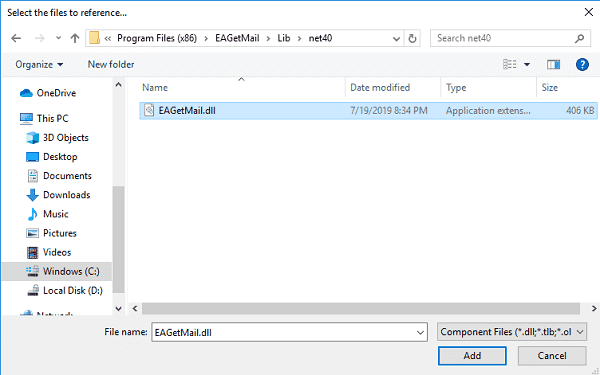
To use EAGetMail POP3 & IMAP Component in your project, the first step is “Add reference
of EAGetMail to your project”. Please create or open your project with Visual Studio,
then go to menu -> Project -> Add Reference -> .NET -> Browse..., and
select Installation path\Lib\[netversion]\EAGetMail.dll, click Open-> OK, the reference
will be added to the project, you can start to use it to
retrieve email and parse email in your project.
.NET assembly
Because EAGetMail has separate builds for .Net Framework, please refer to the following table and choose the correct dll.
Separate builds of run-time assembly for .Net Framework 2.0, 4.0, 4.5, 4.6.1, 4.7.2, 4.8.1, .NET 6.0, NET 7.0, .NET 8.0, .NET Standard 2.0 and .Net Compact Framework 2.0, 3.5.
| File | .NET Framework Version |
| Lib\net20\EAGetMail.dll |
Built with .NET Framework 2.0
It requires .NET Framework 2.0, 3.5 or later version. |
| Lib\net40\EAGetMail.dll |
Built with .NET Framework 4.0
It requires .NET Framework 4.0 or later version. |
| Lib\net45\EAGetMail.dll |
Built with .NET Framework 4.5
It requires .NET Framework 4.5 or later version. |
| Lib\net461\EAGetMail.dll |
Built with .NET Framework 4.6.1
It requires .NET Framework 4.6.1 or later version. |
| Lib\net472\EAGetMail.dll |
Built with .NET Framework 4.7.2
It requires .NET Framework 4.7.2 or later version. |
| Lib\net481\EAGetMail.dll |
Built with .NET Framework 4.8.1
It requires .NET Framework 4.8.1 or later version. |
| Lib\net6.0\EAGetMail.dll |
Built with .NET 6.0
It requires .NET 6.0 or later version. |
| Lib\net7.0\EAGetMail.dll |
Built with .NET 7.0
It requires .NET 7.0 or later version. |
| Lib\net8.0\EAGetMail.dll |
Built with .NET 8.0
It requires .NET 8.0 or later version. |
| Lib\netstandard2.0\EAGetMail.dll |
Built with .NET Standard 2.0
It requires .NET Standard 2.0 or later version. |
| Lib\net20-cf\EAGetMail.dll |
Built with .NET Compact Framework 2.0
It requires .NET Compact Framework 2.0, 3.5 or later version. |
| Lib\net35-cf\EAGetMail.dll |
Built with .NET Compact Framework 3.5
It requires .NET Compact Framework 3.5 or later version. |
VB.NET - Parse failure delivery report (NDS) - example
The following example codes demonstrate parsing failure delivery report.
In order to run it correctly, please change email server, user, password, folder, file name value to yours.
Note
To get full sample projects, please download and install EAGetMail on your machine.
Imports System.Text
Imports System.IO
Imports EAGetMail 'imports EAGetMail namespace

Module Module1
    Private Sub ParseReport(ByVal emlFile As String)
        Dim oMail As New Mail("TryIt")
        oMail.Load(emlFile, False)

        If Not oMail.IsReport Then
            Console.WriteLine("This is not a delivery report.")
            Return
        End If

        Dim oReport As MailReport = oMail.GetReport()
        Select Case oReport.ReportType
            Case DeliveryReportType.DeliveryReceipt
                Console.WriteLine("This is a delivery receipt!")
                Exit Select
            Case DeliveryReportType.ReadReceipt
                Console.WriteLine("This is a read receipt!")
                Exit Select
            Case DeliveryReportType.Deleted
                Console.WriteLine("This is a unread receipt, this email was deleted without read!")
                Exit Select
            Case DeliveryReportType.DelayedReport
                Console.WriteLine("This is a delayed report, server will retry to send the email later automatically!")
                Exit Select
            Case Else
                Console.WriteLine("This is a failure report!")
                Exit Select
        End Select

        Console.WriteLine("OriginalSender: {0}", oReport.OriginalSender)
        Console.WriteLine("OriginalRecipient: {0}", oReport.OriginalRecipient)
        Console.WriteLine("OriginalMessageID: {0}", oReport.OriginalMessageID)

        If oReport.ReportType = DeliveryReportType.FailureReport Or
            oReport.ReportType = DeliveryReportType.DelayedReport Then
            Console.WriteLine("ErrCode: {0}", oReport.ErrCode)
            Console.WriteLine("ErrDescription: {0}", oReport.ErrDescription)
            Console.WriteLine("OriginalSubject: {0}", oReport.OriginalSubject)
            Console.WriteLine("ReportMTA: {0}", oReport.ReportMTA)
            Console.WriteLine(oReport.OriginalHeaders.ToString())
        End If
    End Sub

    Sub Main()
        Try
            ParseReport("c:\my folder\test.eml")
        Catch ex As Exception
            Console.WriteLine(ex.Message)
        End Try

    End Sub
End Module
Appendix
- Retrieve email and parse email in VB.NET - Tutorial
- EAGetMail POP3/IMAP4 Component SDK
- Using UIDLManager to mark email as read/downloaded
- Download only unread/new emails from IMAP or MS Exchange Server
- Search emails and filter emails on IMAP or MS Exchange Server
- Retrieve emails from specified folder in IMAP or MS Exchange Server
Comments
If you have any comments or questions about above example codes, please click here to add your comments.